👤 User Profile & Settings
Your user profile is the central hub for managing your account, viewing your balance, and customizing your CodeGPT experience.
📋 Profile Overview
When you click on your profile icon in the CodeGPT extension, you will see a detailed menu with the following information:
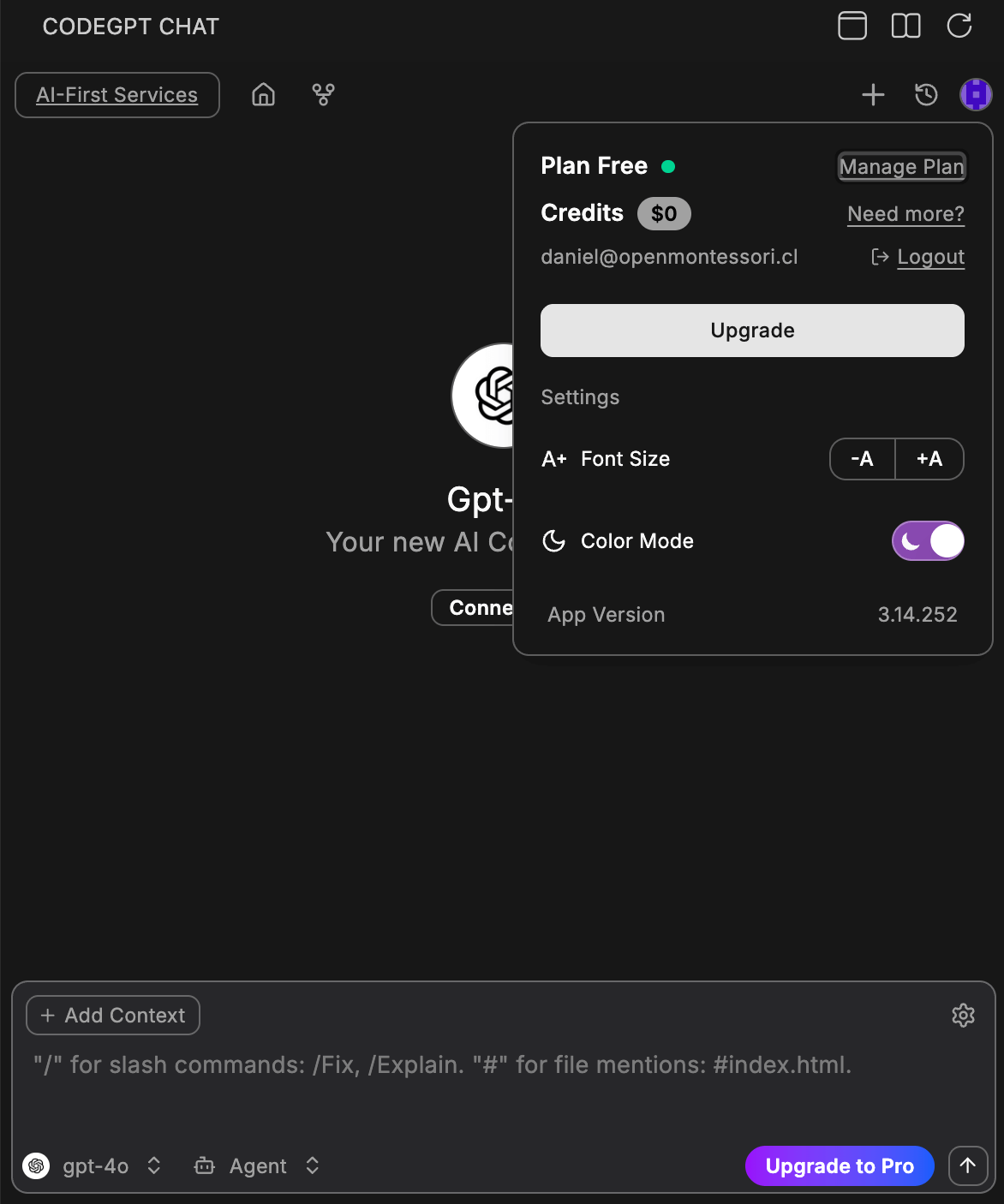
- Plan Status: Shows whether you are on the Free, Pro, or Credit-based plan.
- Credits Balance: View your current dollar balance for premium model usage.
- User Email: The account currently logged in.
- Manage Plan: A shortcut to our website to upgrade or change your subscription.
- Logout: Securely sign out of your CodeGPT account.
⚙️ Personalization Settings
The profile menu also includes quick settings to make your environment more comfortable:
- Font Size: Adjust the chat font size using the -A and +A buttons for better readability.
- Color Mode: Toggle between Light Mode and Dark Mode. By default, it follows your VS Code theme, but you can override it here.
- App Version: Check which version of CodeGPT you are currently running (e.g.,
3.14.252) to ensure you have the latest features.
🔧 Advanced Settings
Click the Settings button to access more configuration options:
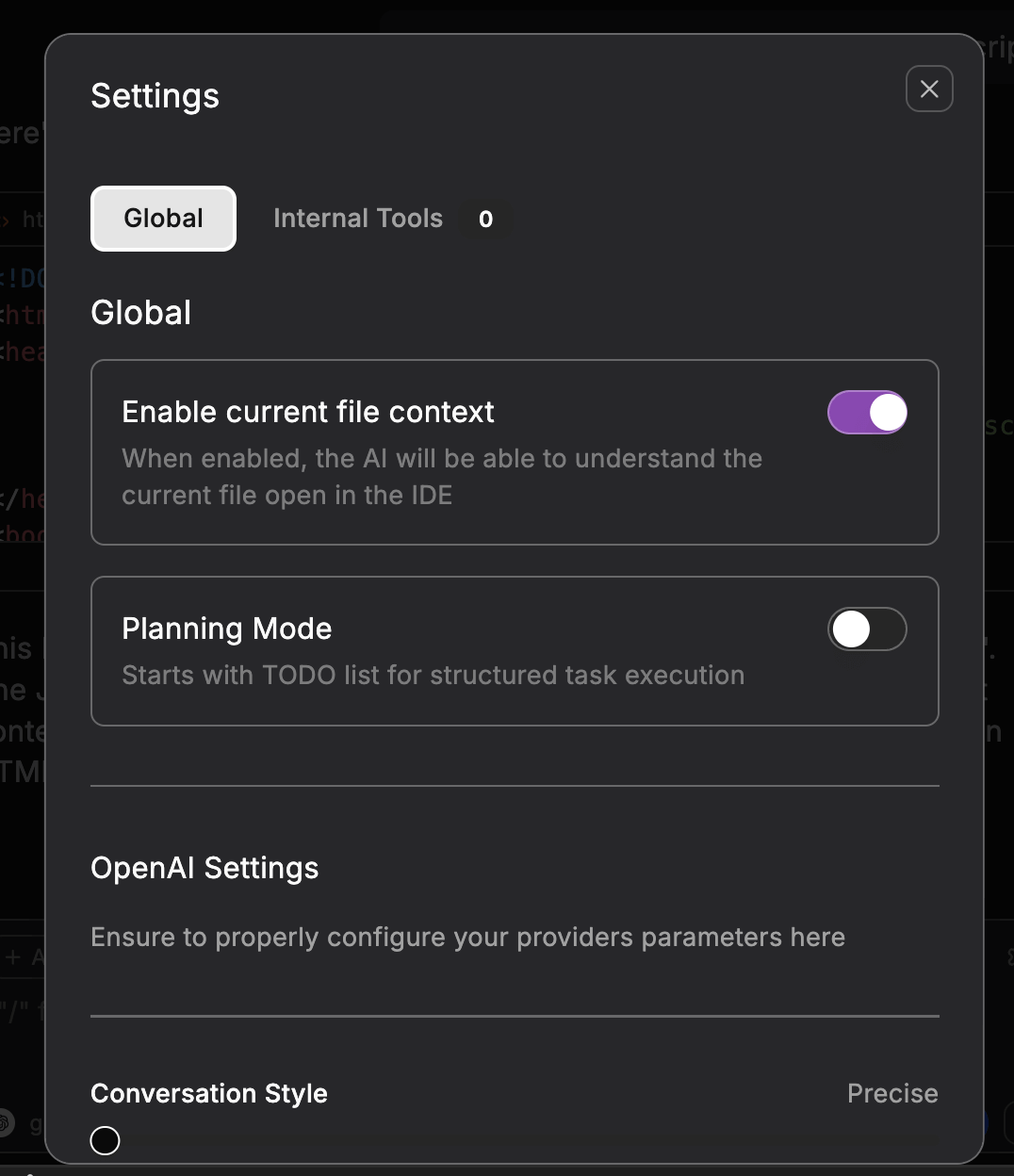
Global Settings
- Enable current file context: When enabled, the AI will be able to understand the current file open in the IDE.
- Planning Mode: Starts with a TODO list for structured task execution in Agent mode.
OpenAI Settings
- Conversation Style: Adjust the temperature (creativity) of the AI model. Higher values lead to more creative but less precise responses.
- Memory: Number of previous messages to consider when generating a response (default: 10 messages).
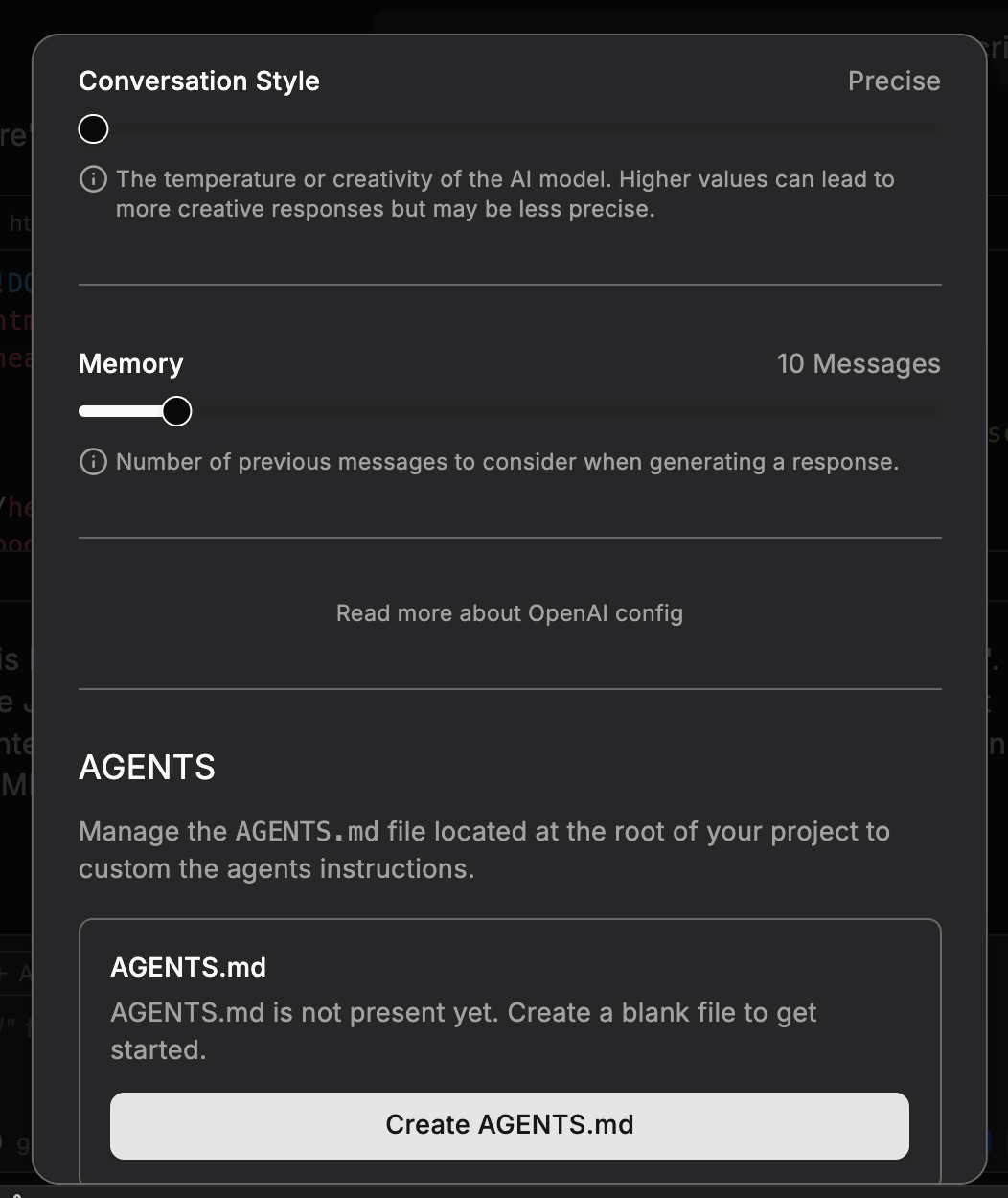
AGENTS Configuration
You can manage the AGENTS.md file located at the root of your project to customize agent instructions. Click Create AGENTS.md to get started with a blank file.
💡 Pro Tip
If you ever run out of credits, click "Need more?" next to your balance to quickly top up and continue working without interruption.
🔜 Next Step
Check out our guide for AI Model Management.