🤖 AI Model Management
The Model Management panel is where you configure which AI engine will power your CodeGPT experience. You can choose between managed providers, your own API keys, or local models.
📂 Accessing the Panel
- Open VS Code.
- Click on the CodeGPT Icon in the Activity Bar (sidebar).
- Click on the Gear Icon or the "Manage my AI Models" button.
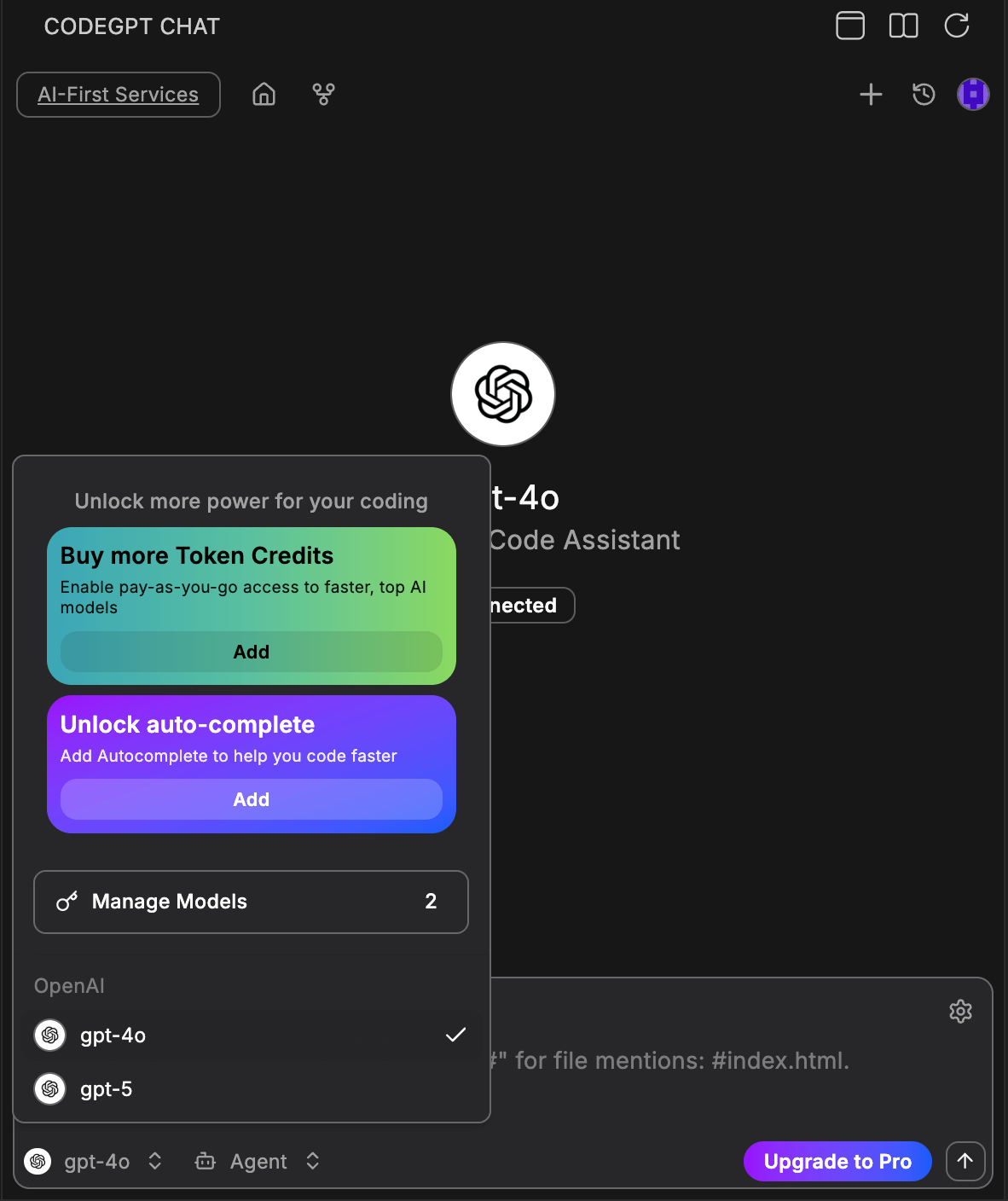
🛠️ Provider Types
1. CodeGPT Managed (Recommended)
Access the best models (GPT-4o, Claude 3.5 Sonnet, etc.) using your CodeGPT Credits. No extra configuration needed.
2. Custom API Keys (BYOK)
Use your own provider accounts from OpenAI, Anthropic, Mistral, and more. This gives you direct control over your billing and limits.
3. Local Models
Connect to local providers like Ollama or LM Studio. This is the best option for privacy and offline work.
🚀 Configuring a Model
Once in the management panel:
- Select a Provider from the left list.
- Enter your API Key if required (or connect via OAuth).
- Select a specific model from the dropdown menu (e.g.,
gpt-4o). - Click Connect or Save.
💡 Troubleshooting
- Connection Failed: Ensure your internet connection is stable and your API key is correct.
- Model not visible: Some models require specific permissions or tier levels from the API provider.