🔐 Connection via OAuth
OAuth authentication allows you to connect AI providers more simply, without needing to manually copy and paste API keys. You just need to authenticate with your existing account through a secure browser window.
🌟 Advantages of OAuth
- No Key Management: Authenticate with one click.
- Enhanced Security: You never handle the raw API keys directly.
- Auto-Renewal: Tokens are managed and renewed automatically by the system.
- User Friendly: Quick setup using your existing provider account.
📋 Available OAuth Providers
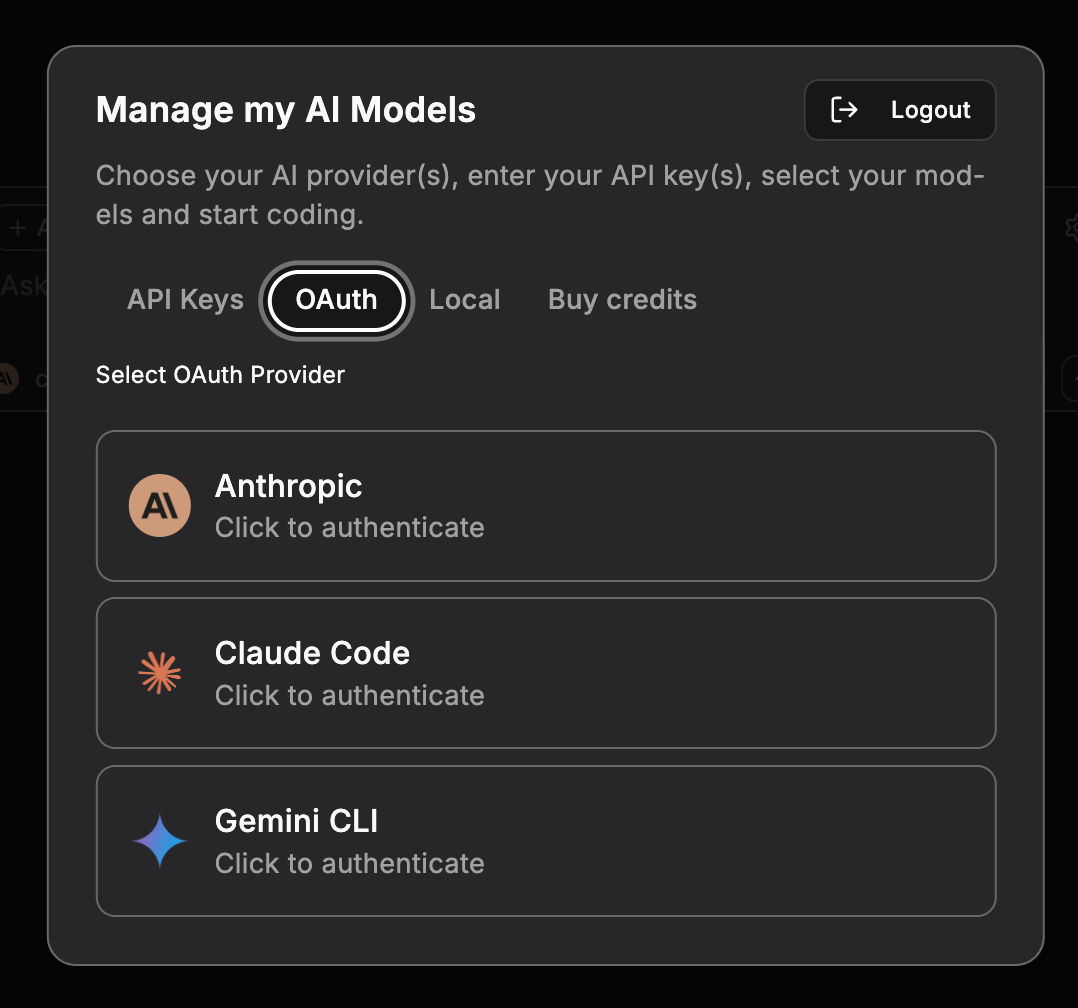
1. Anthropic
Direct authentication with your Anthropic account.
To connect:
- Click the "Anthropic" button in the OAuth tab.
- A browser window will open.
- Log in to your Anthropic account.
- Authorize CodeGPT to access your account.
- You will be redirected back to VS Code.
2. Claude Code
Authentication with Claude Code for direct access to Anthropic's models.
To connect:
- Click the "Claude Code" button.
- Follow the authentication flow in your browser.
- Authorize the connection.
- The link is established automatically.
3. Gemini CLI
Authentication with Google Gemini using standard Google sign-in.
To connect:
- Click the "Gemini CLI" button.
- Authenticate using your Google account in the browser.
- Authorize the connection.
- The link is established automatically.
🚀 Connection Steps
Step 1: Access the Panel
- Open the Manage my AI Models panel in VS Code.
- Click on the "OAuth" tab.
Step 2: Authenticate
- Choose your provider and click the connection button.
- Follow the steps in your browser.
- Confirm the authorization.
Step 3: Ready to use
Once authenticated, the provider will show as Connected and you can start using its models immediately.
🔄 Session Management
To disconnect or switch accounts, simply go back to the OAuth panel and click Logout. This will clear the session tokens from your local machine.
🔜 Next Step
Want to run models offline? Check out Local Models.