💻 Local Models (Ollama & More)
Run powerful LLMs directly on your own hardware for maximum privacy, zero latency (once downloaded), and no usage costs (BYOH - Bring Your Own Hardware). CodeGPT integrates perfectly with popular local providers like Ollama.
🌟 Why use Local Models?
- 100% Privacy: Your code never leaves your computer.
- Offline Use: Code without an internet connection.
- Cost-Effective: No per-token costs.
- Freedom: No content filtering or external restrictions.
🦙 Using Ollama with CodeGPT
Step 1: Install Ollama
Download and install Ollama from ollama.com.
Step 2: Download a Model
Open your terminal and run:
ollama run llama3Step 3: Connect to CodeGPT
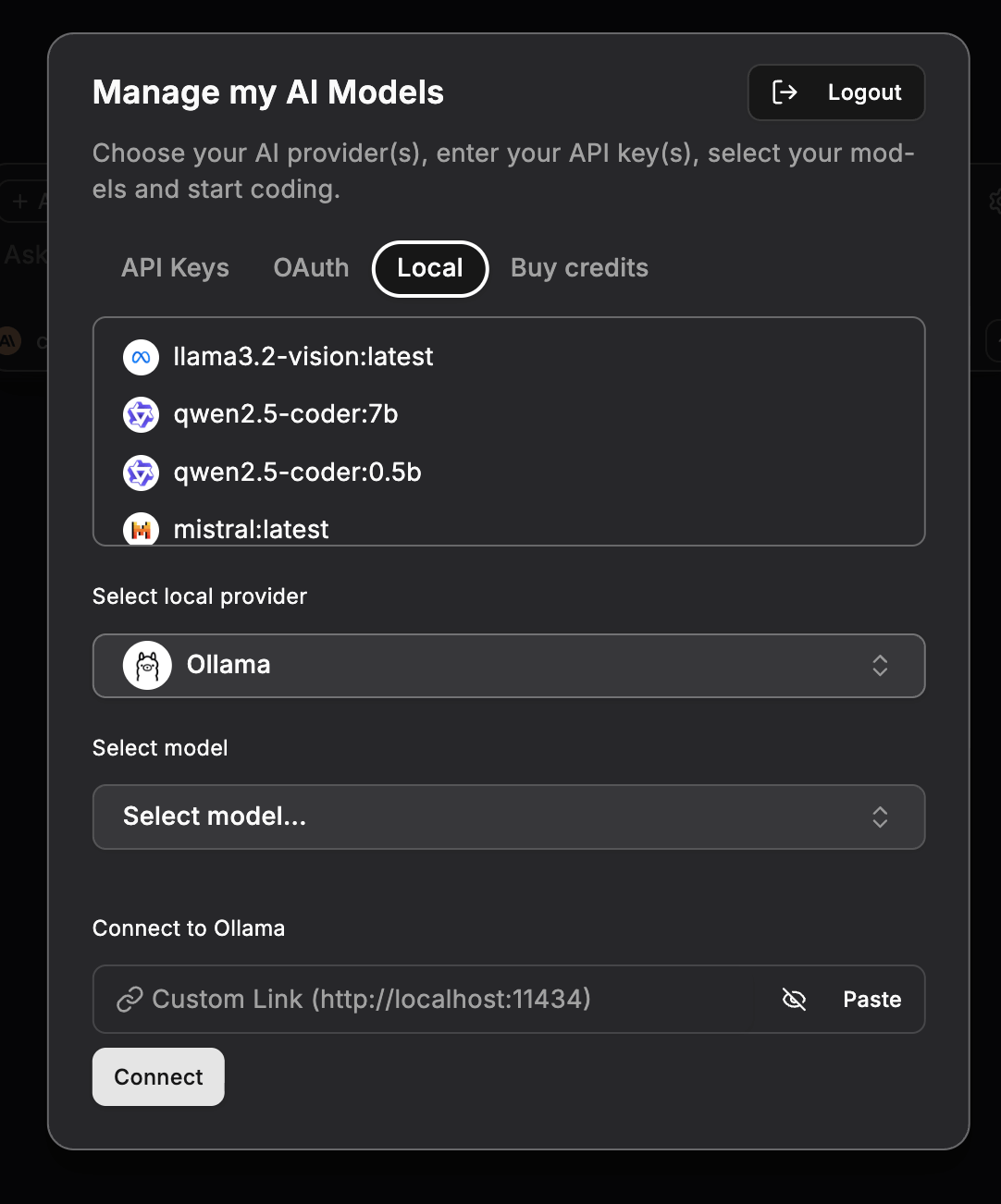
- Open the Manage my AI Models panel.
- Select the Local tab.
- Choose Ollama as your local provider.
- Ensure the API URL is set correctly (default:
http://localhost:11434). - Click Connect.
- Select your model (e.g.,
llama3:latest) and start chatting!
🔧 Advanced Configuration
Remote Ollama
If Ollama is running on a different machine in your network, you can enter its IP address in the API URL field (e.g., http://192.168.1.10:11434).
LM Studio & Others
CodeGPT can also connect to any provider that offers an OpenAI-compatible local server. Select the Local LLM provider and enter the appropriate endpoint URL.
💡 Performance Tips
- RAM is key: Ensure you have enough RAM (preferably 16GB or more) to run larger models.
- GPU Acceleration: Using a machine with a dedicated GPU (NVIDIA or Mac M-series) will significantly speed up inference.
- Start Small: Try models like
phi-3ormistral-7bif your hardware is more modest.
🔜 Next Step
Learn about AI Autocomplete to speed up your coding.