🔑 Connection via API Keys
The Bring Your Own Key (BYOK) method allows you to use your existing accounts from major AI providers with CodeGPT. When using your own API keys, you pay directly to each provider — CodeGPT does not process any payments on your behalf. Your usage limits, billing, and available credits are determined entirely by your account with each provider. This gives you full control over your spending and access to the features included in your provider plan.
🌟 Why use your own keys?
- Direct Billing: You pay the providers directly at their official rates.
- Higher Limits: Access the quotas associated with your provider account (e.g., OpenAI Tier 5).
- Private & Secure: Your API keys are stored locally on your machine and only used to authenticate requests.
📋 Supported Providers
CodeGPT supports a wide range of providers via API keys:
- Anthropic: Use the Claude family (Sonnet, Opus, Haiku).
- OpenAI: Access GPT-4, GPT-4o, and specialized models.
- Google AI Studio: Access Gemini models directly from Google.
- OpenRouter: Unified access to multiple AI providers.
- Bedrock: AWS-managed AI models.
- Grok: xAI's conversational AI model.
- Azure: Microsoft's Azure OpenAI Service.
- Groq: Ultra-fast inference with LPU technology.
- DeepSeek: Advanced reasoning and coding models.
- Mistral: Access powerful open-weights models.
- Claude Code: Anthropic's specialized coding assistant.
- Nvidia: NVIDIA NIM microservices.
- Cohere: Optimized for retrieval and chat.
- Gemini CLI: Command-line access to Google's Gemini.
- Perplexity: Real-time search and information retrieval.
- Cerebras: High-performance AI inference.
- Byteplus: ByteDance's cloud AI services.
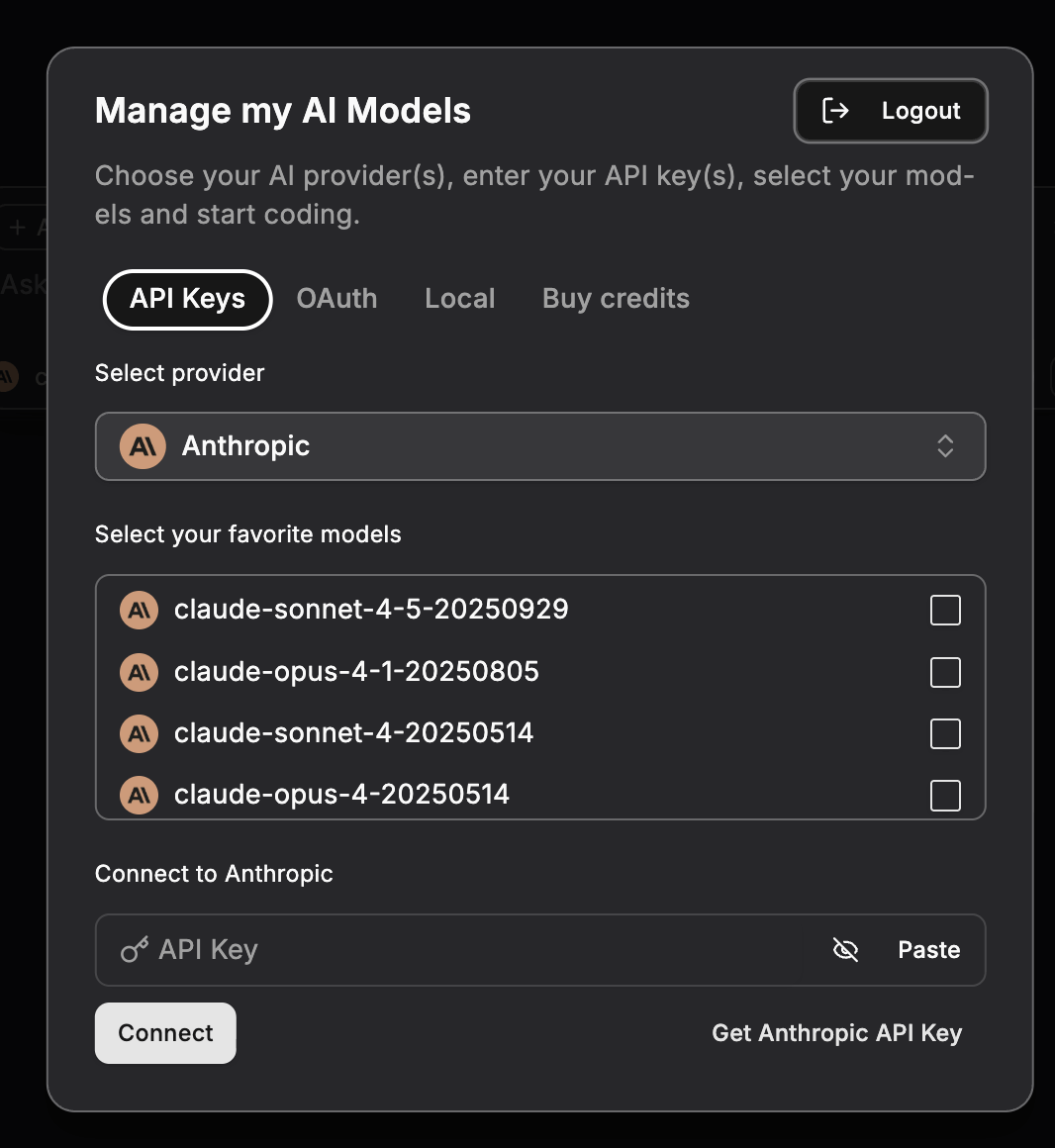
🚀 Setup Instructions
Step 1: Obtain your API Key
Go to your provider's dashboard (e.g., OpenAI Dashboard) and create a new secret key.
Step 2: Enter the key in CodeGPT
- Open the Manage my AI Models panel in VS Code.
- Select your provider from the list.
- Paste your secret key in the "API Key" field.
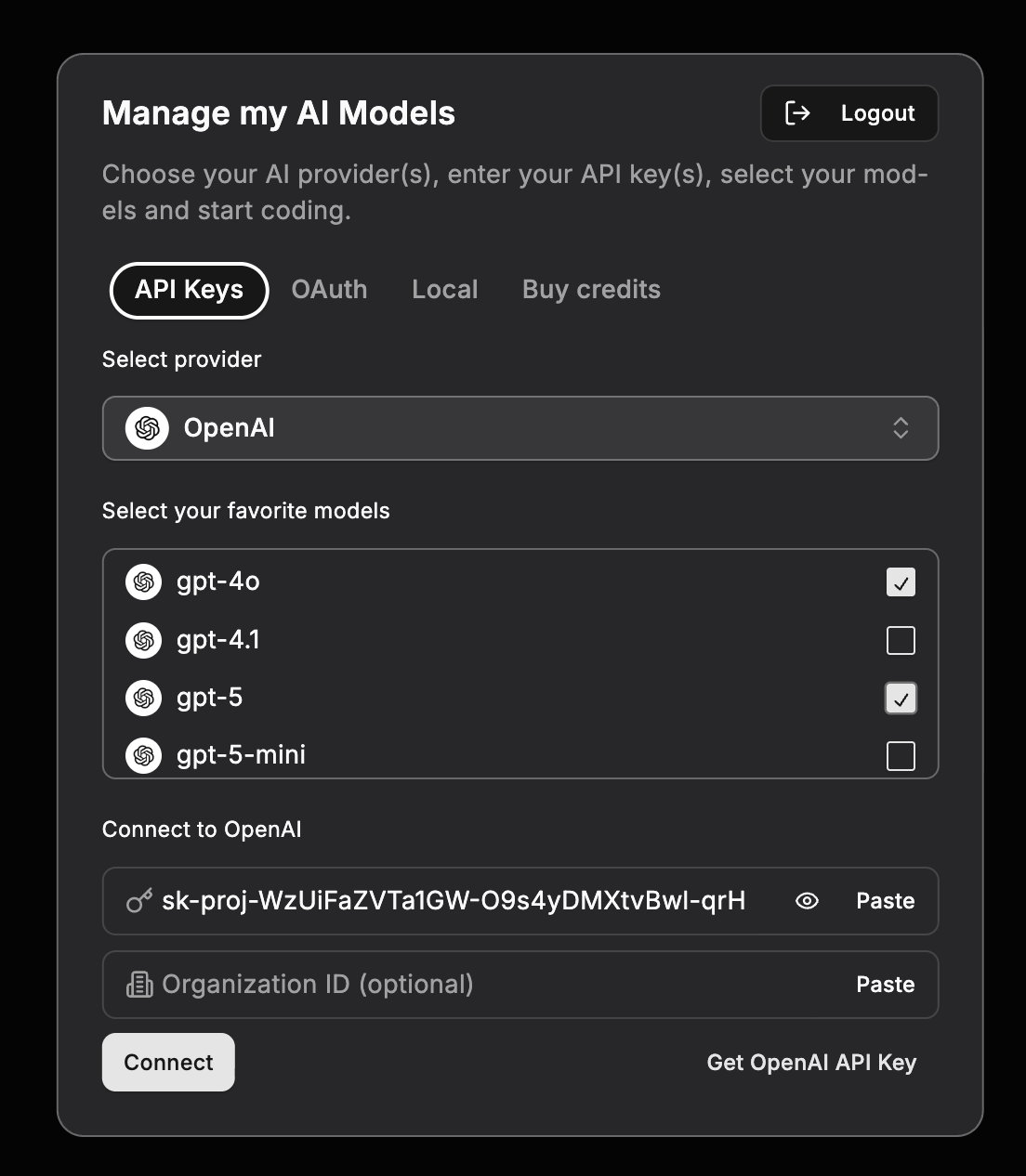
Step 3: Select and Connect
- Click Connect to validate the key.
- Once connected, choose your preferred model from the list.
⚠️ Security Note
Never share your API keys with anyone. CodeGPT stores these keys securely within your VS Code local storage/keyring and never transmits them to any third-party server besides the one you are connecting to.
🔜 Next Step
Prefer a simpler way? Try OAuth Connection.